Helping Schools and Businesses Stay on Track
Background
This reservation app helps manage various office and building needs. These include scheduling for conference rooms and private offices, as well as labs and research rooms, along with added security.
Challenge
The challenge of this project was to develop a system that can adapt to the changing needs of the institution while also supporting day-to-day tasks and activities. Additionally, the system must be able to resize—growing or shrinking as necessary—while remaining intuitive whether used on a mobile device or a larger format, such as a tablet.
Tools
Figma
Illustrator
Impact
Enhanced team collaboration efficiency.
Streamlined the reservation process, saving time and effort.
Reduced double bookings and scheduling conflicts
Minimized administrative errors and workload.
App Design
This room reservation system allows users to schedule times they would like to use a room. This makes coordinating meetings, collaborating, and work in general much easier and more efficient, especially in larger offices and institutions.
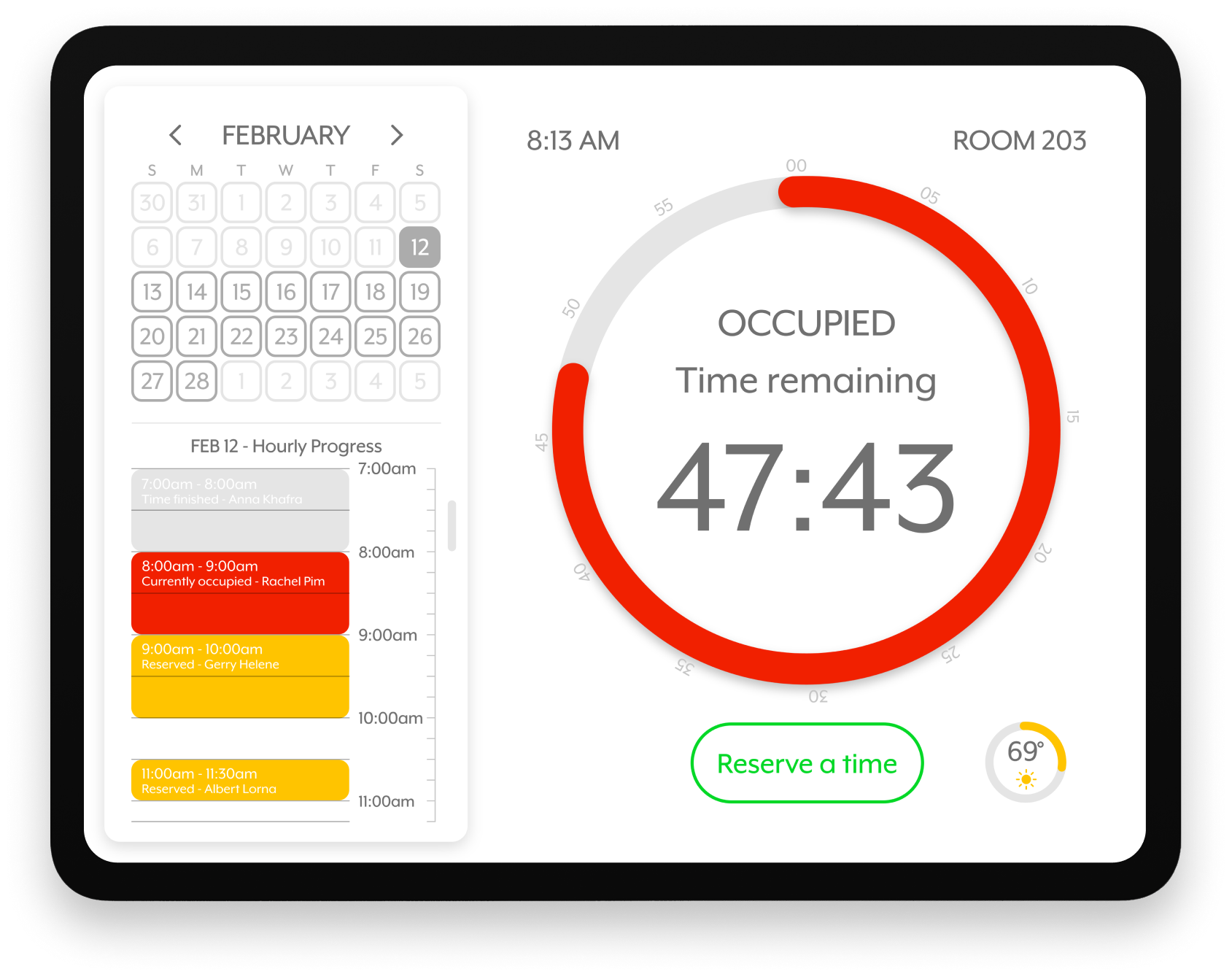
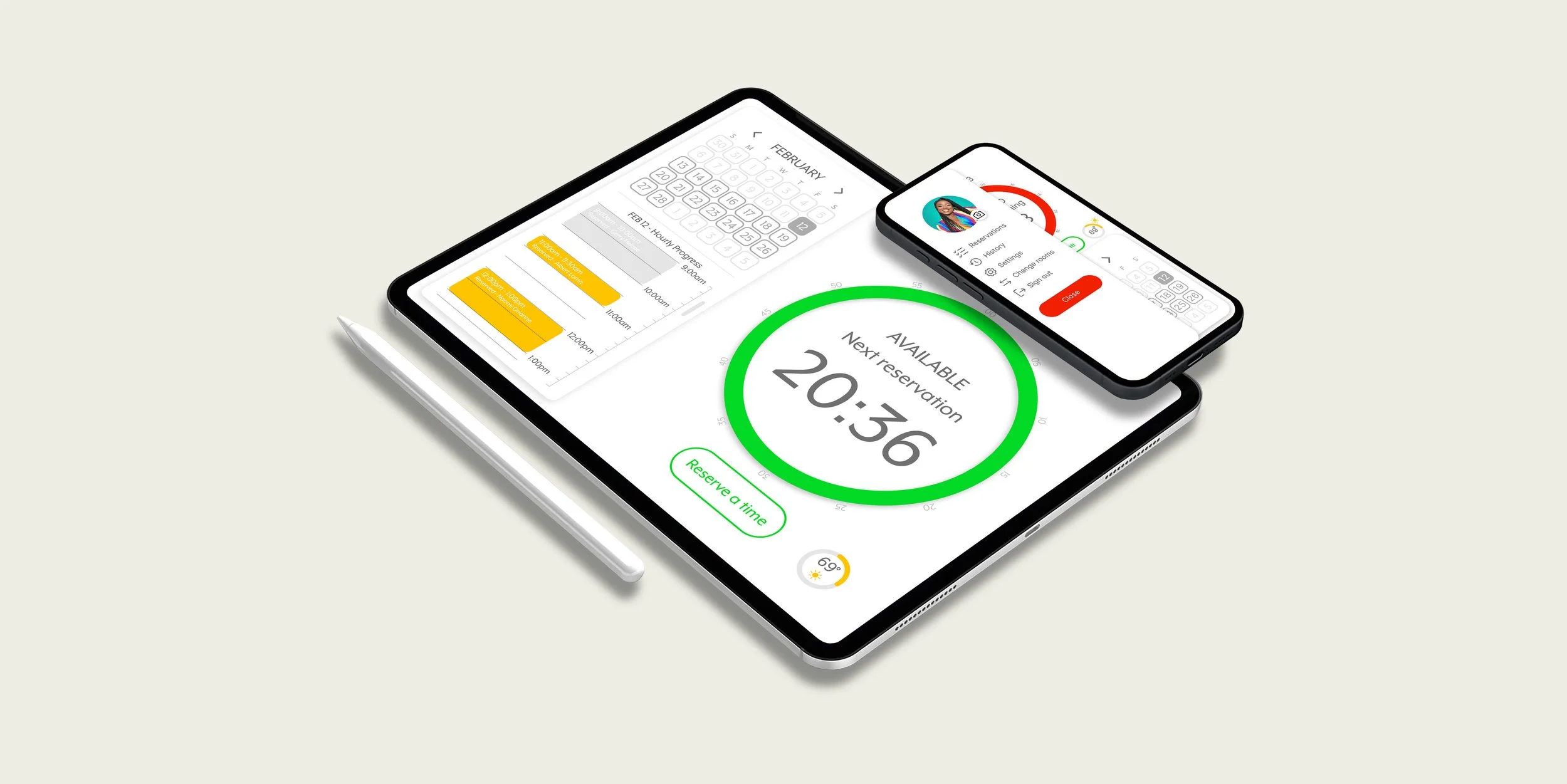
This screen will typically be the first screen users will be greeted with. On the left, there is a calendar that displays the current date, and hourly progress below for that day. The hourly progress shows reserved and open time slots.
The right section of the screen shows the current time, the room number, and a central dial that displays whether the room is currently occupied or available. This central dial pairs with the calendar and hourly progress. There is also a button to begin scheduling a time, and the current temperature of that room.
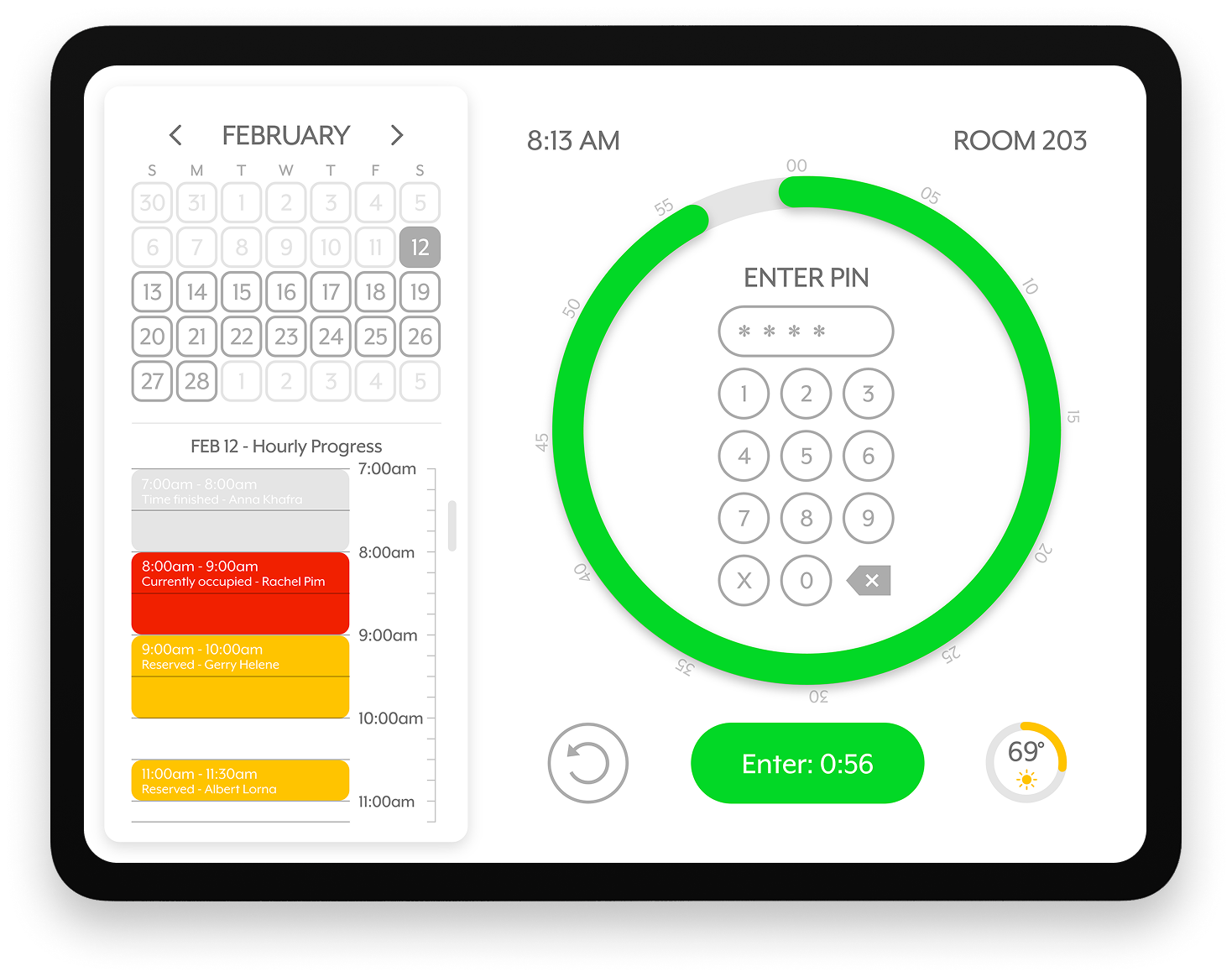
Once the reservation process begins, the central dial changes, and a security measure can be placed, such as a PIN or login system. Note that the ring around the pin system has changed. This is a visual indication of a countdown and time remaining to complete the reservation.
To enter the pin and proceed to the next step, the user must press the button below, which also displays the exact time remaining. There is also a back button that appears during this process to cancel and return to the previous screen.
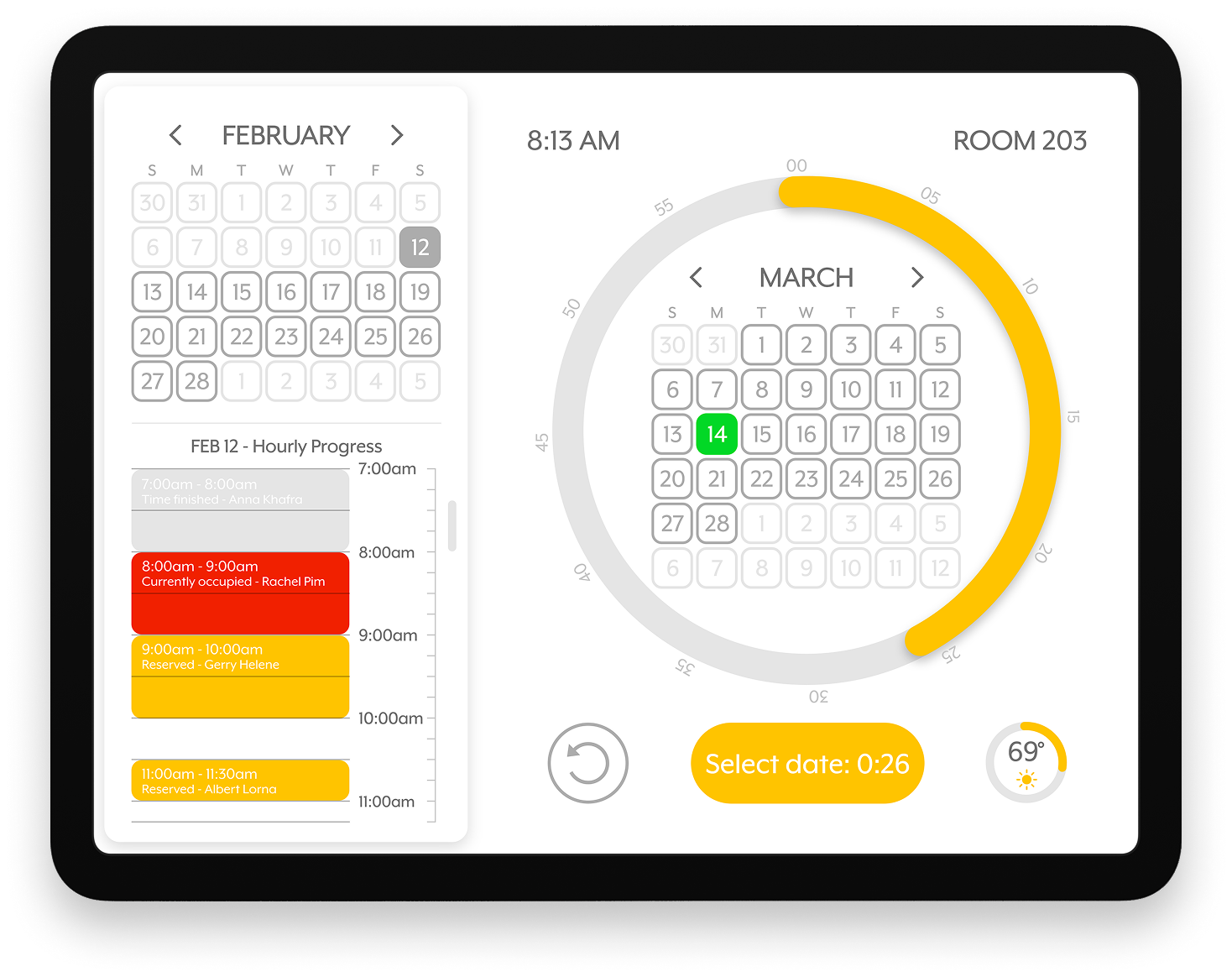
The next step is to pick a month and day for the reservation. A separate calendar appears, allowing the user to pick a day, whether it is the same day, a few days, or weeks in advance. This can be done by pressing the left or right arrow to change the month and selecting the day that is highlighted green.
As the timer continues, once it passes the 30-second mark, the ring changes color from green to yellow. This is again a visual cue indicating the remaining time.
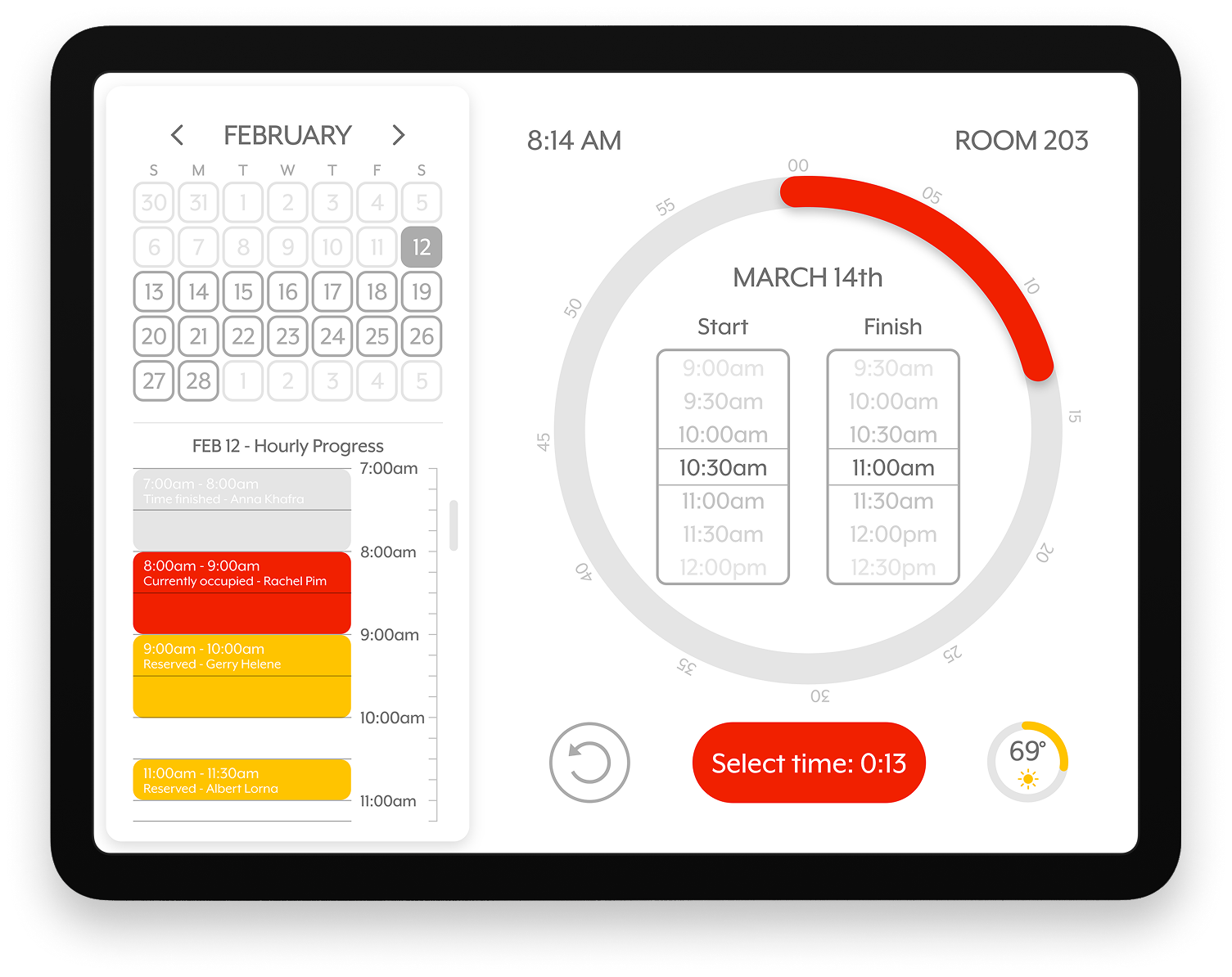
The last part of the reservation process involves scrolling through the start and finish columns to pick a specific time based on the date chosen. As the ring passes the 15-second mark, the color changes from yellow to red as a last indication or visual cue of the amount of time left.
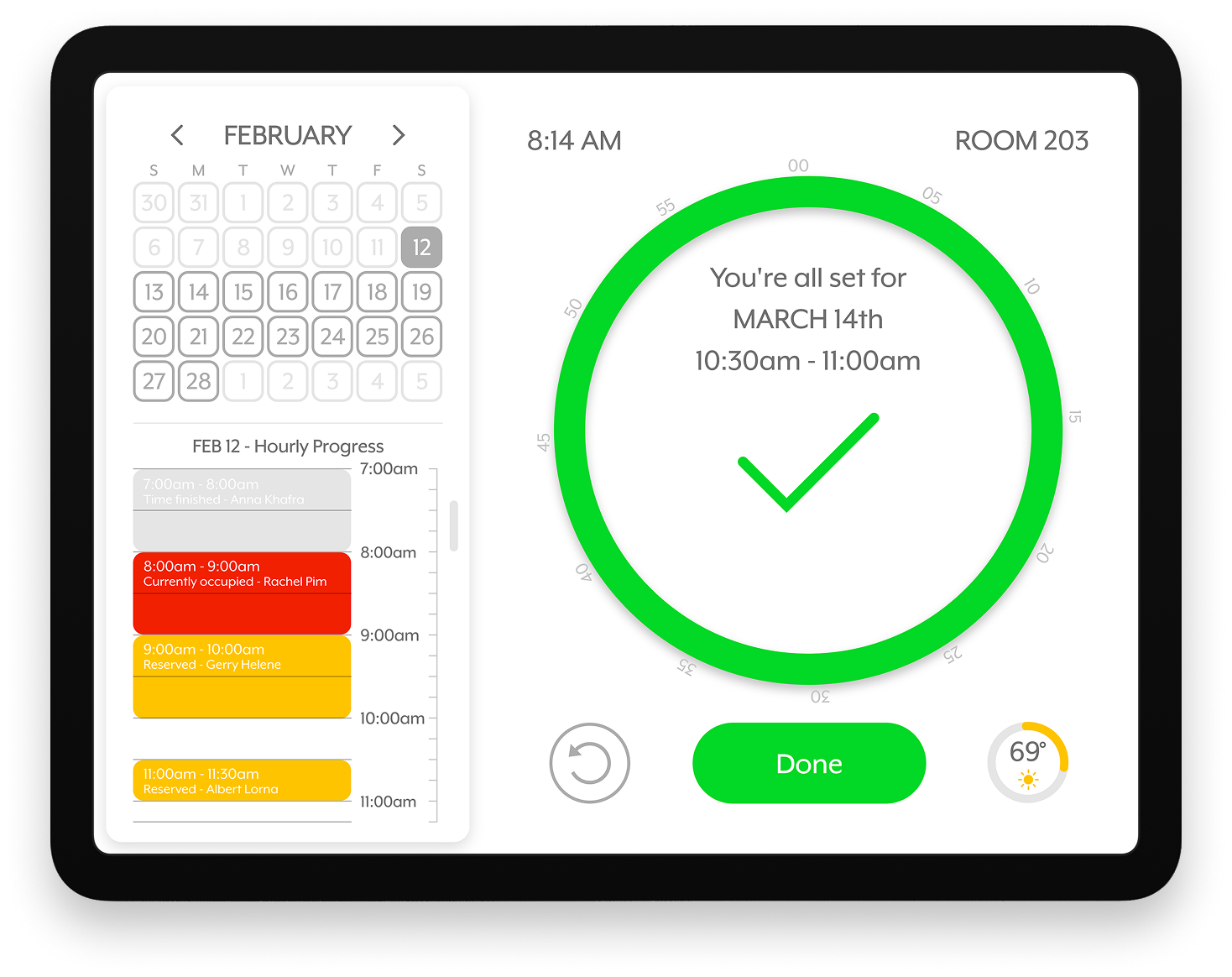
After everything has been selected, text and a checkmark appear, confirming the time slot. There is no timer needed, so all that is left to do is click done to move on to the default screen.
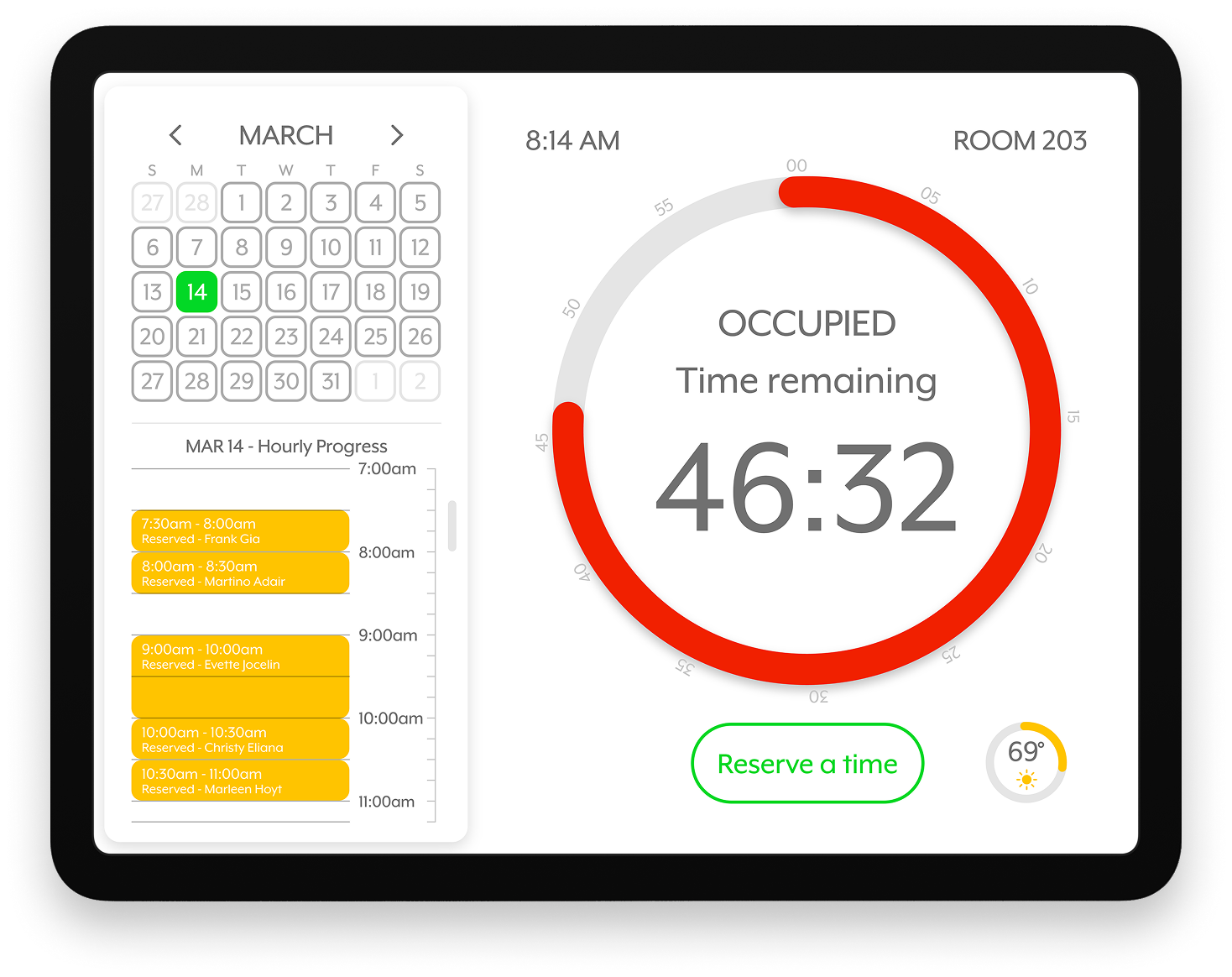
Although the calendar and hourly progress serve as companion to the dial, they also serve their own individual purpose. You can click the left or right arrow to change months on the calendar, and when a day is selected, the hourly progress changes for that specific day. This is helpful to look at the schedule for the room in advance and see what is available.
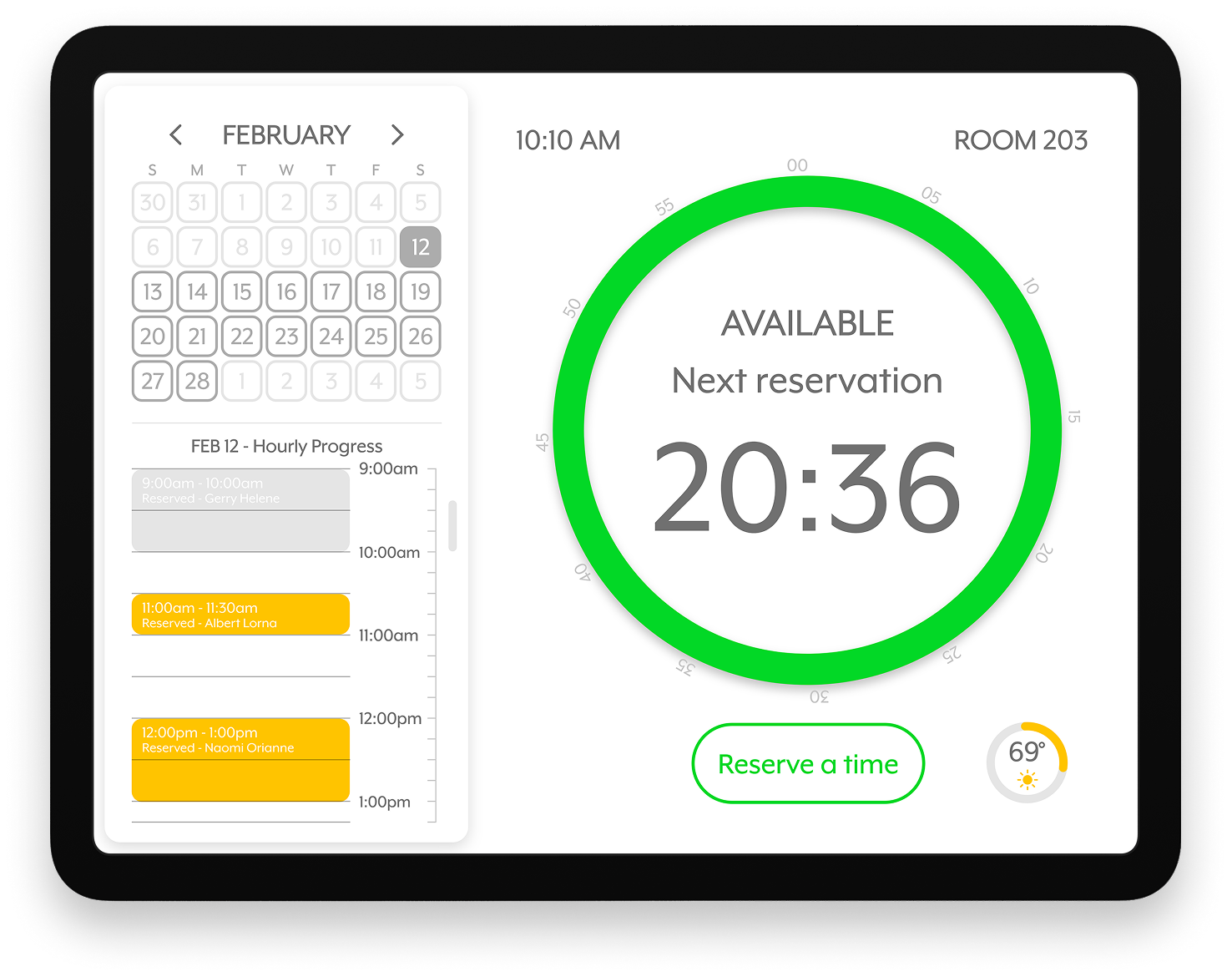
Aside from text indicating that a room is available, the ring will be full and colored green. The dial will also show how much time it takes till the next appointment. The calendar, hourly progress, and dial will update automatically as the days, weeks, or months move forward and will not require any manual configuration.
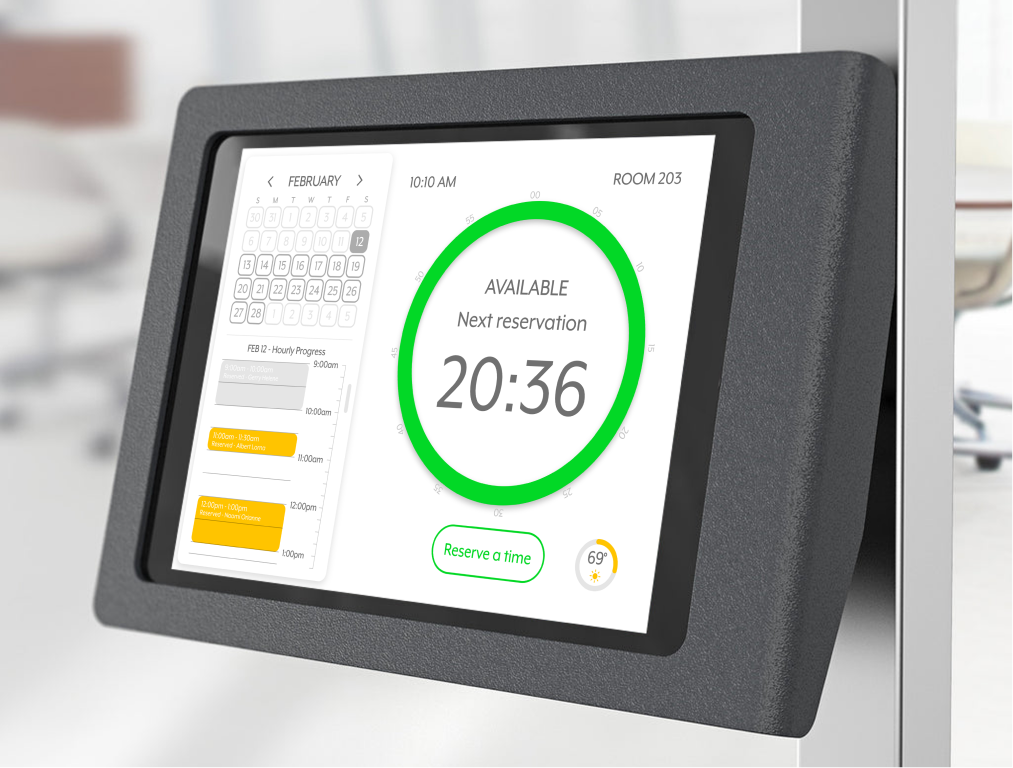
Although the calendar and hourly progress serve as companion to the dial, they also serve their own individual purpose. You can click the left or right arrow to change months on the calendar, and when a day is selected, the hourly progress changes for that specific day. This is helpful to look at the schedule for the room in advance and see what is available.
Mobile
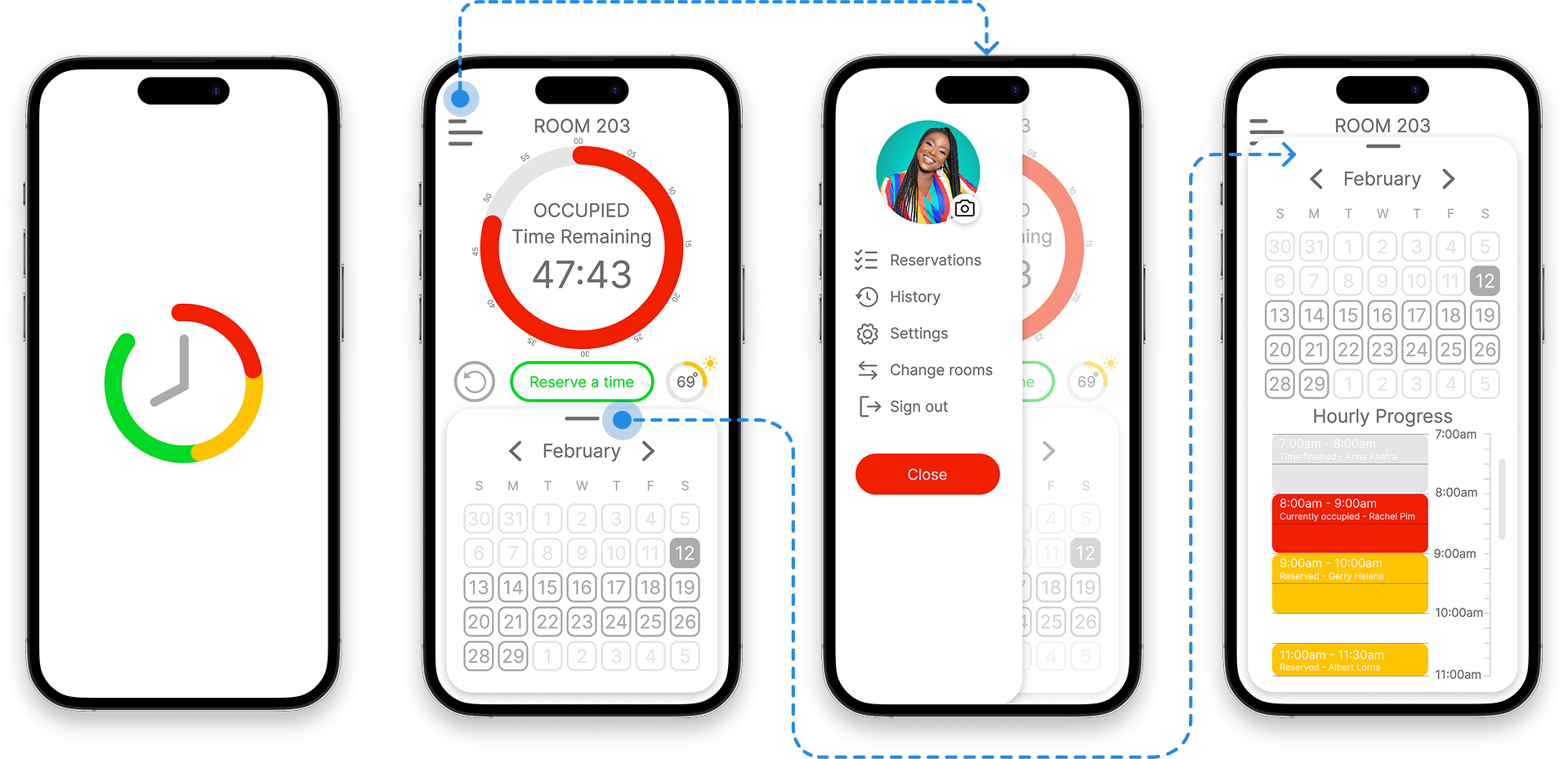
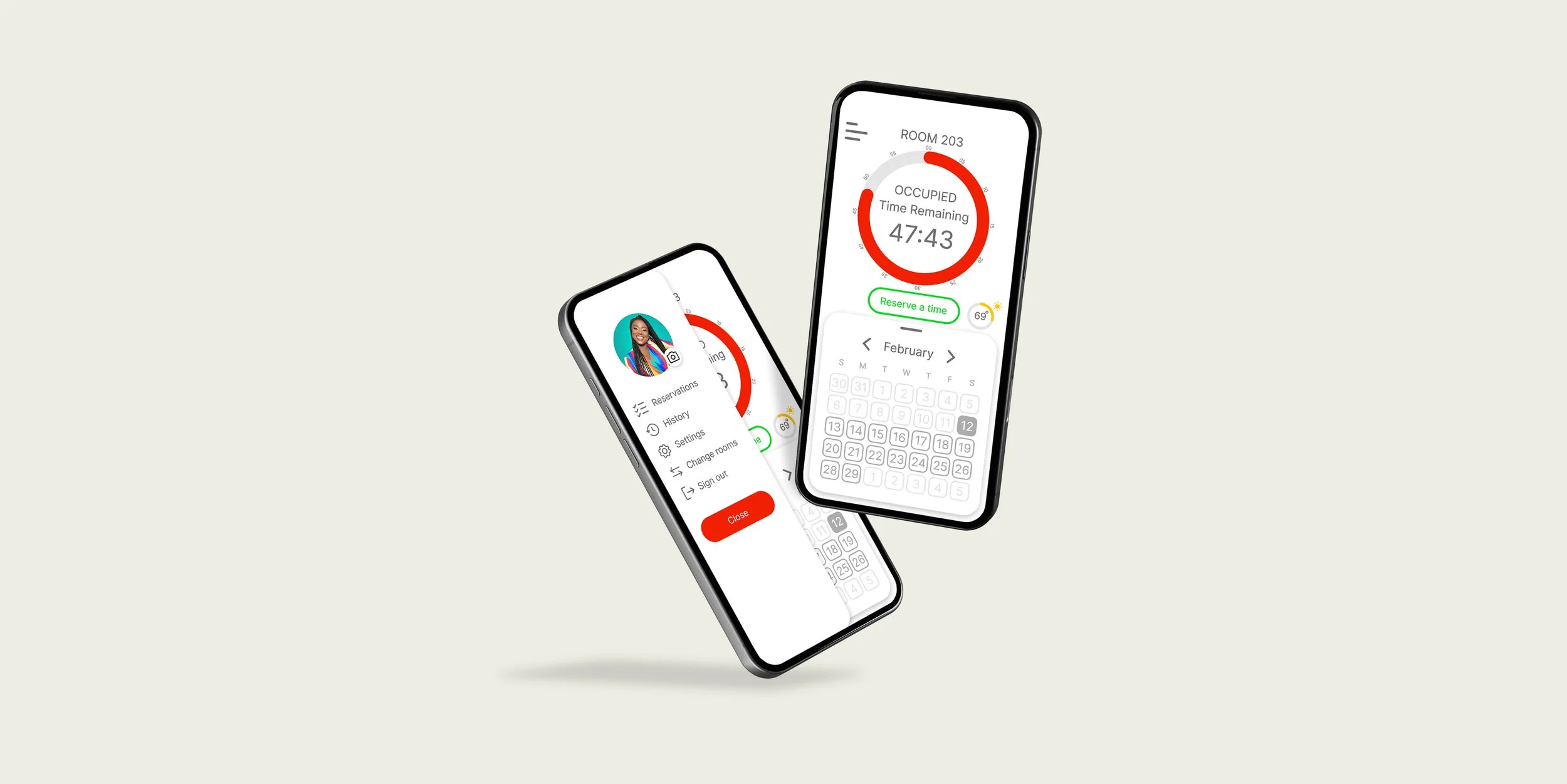
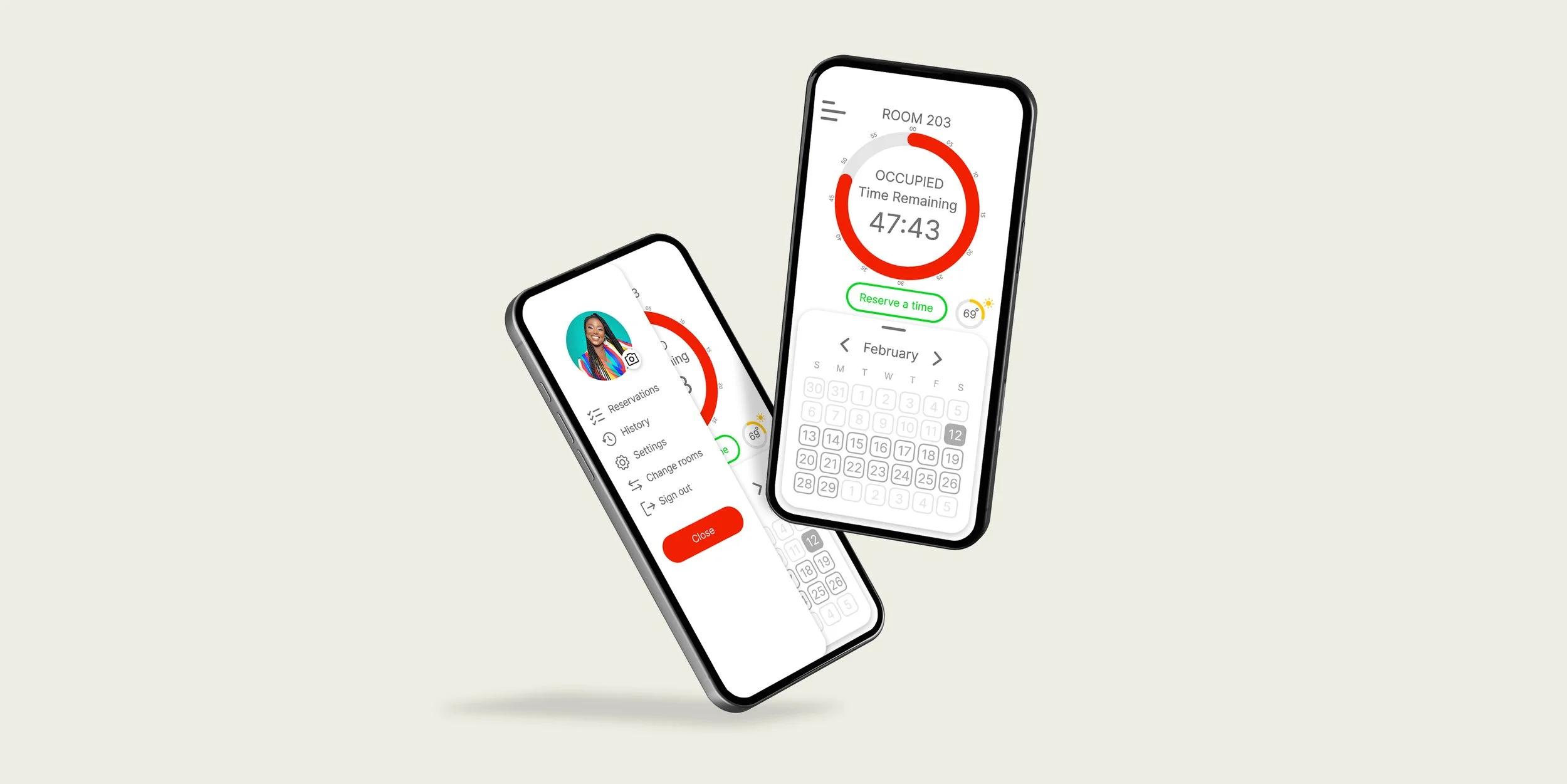
When the app is on a phone, there are a few aspects that must change as a result of the platform. The splash screen is the first thing users see. Next is the home page that displays the calendar, reservation menu, and options menu. Because the app is no longer tied to a specific tablet and room, a profile menu was added so that reservations can be checked, and room numbers can be changed for other bookings. The last screen shows that swiping up on the calendar reveals the hourly progress for a room.